
Migrating Pages and Posts
Check which editor was used
Our CALSv3 theme offered two editors: the simple “Classic” editor (also known as WYSIWYG) and the “Advanced” or “ACE” editor. You’ll be able to see which editor was used on a page or post based on a column in the admin page list.
These pages need to be manually converted to Gutenberg. Our CALSv4 theme does apply some of the old formatting/styles on the front-end of your site to give you an idea of what it used to look like, but this is solely intended to aid the migration process. When we finalize your migrated site, we will disable the ACE editor and these pages will appear blank.
Converting advanced pages
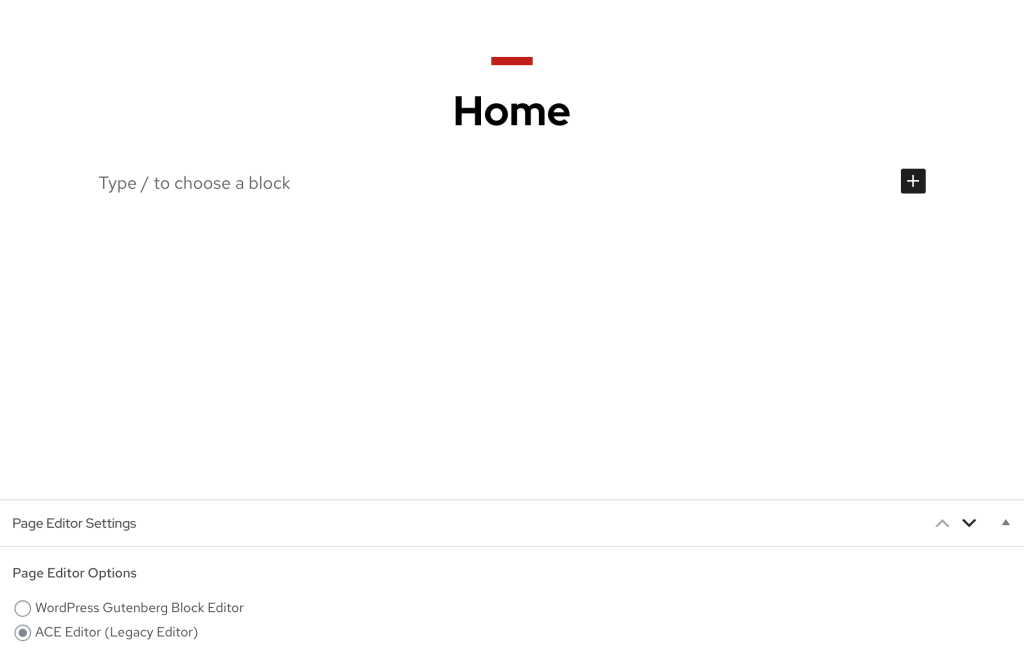
For migrating, we recommend you open up the editor and the page on your old site side-by-side and copying and pasting the content from the old site rather than trying to piece together the content from the form. Once you’ve built each page, you should delete all rows of content from the ACE editor (otherwise it will rot in our database forever) and switch the page editor from “ACE Editor (Legacy Editor)” to “WordPress Gutenberg Block Editor”.
These pages used the classic/WYSIWYG editor in the old theme. You do not necessarily need to modify these pages. However, we do recommend converting them to use the block editor to unlock many more powerful features and fix some potential layout bugs. At the very least, you should preview these pages to make sure the formatting looks correct.
Converting classic pages
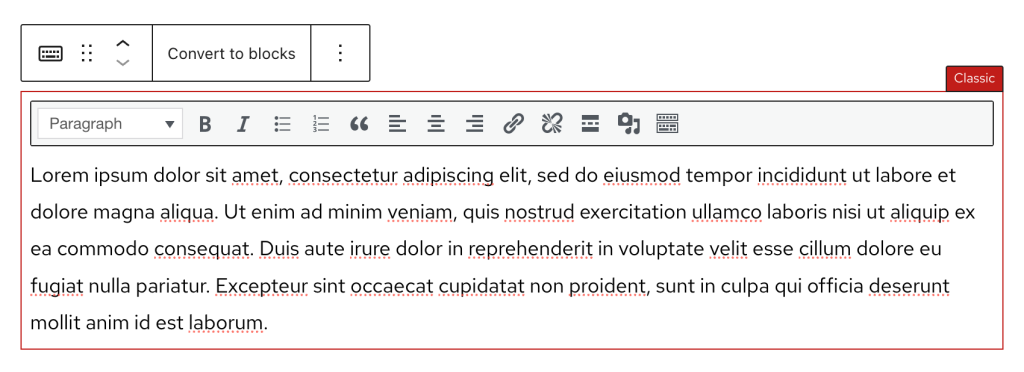
If your page previously used the classic (default) WordPress editor, you’ll see the “Classic” block in your page content within the block editor. To convert this content, all you need to do is select the block and choose “Convert to blocks”. You may need to make small adjustments to format it as desired. Make sure all images that need alt text have alt text.
Most posts will use the default editor. In most cases, especially if you have a large number of posts, it is fine to leave these alone unless you need or want to the Gutenberg editor to format the post.
Migrating People
Previously built into the theme, the people directory has moved into its own plugin. If we see people on your old site, we will likely automatically activate the plugin for your new site. When the plugin is activated, all the people that were previously on your site should show up. However, if you used the people directory on your CALSv3 site and don’t see the “Directory” option in the admin sidebar or are missing people in your list, please contact us and we will activate it for you.
Where you previously used a field in the ACE form editor, the new people directory uses a block in the editor for displaying your lists of people. The block has similar settings for filtering and displaying people. For more information about the people directory, check out our help article.