
Image Alt Text
You must add alternative text to all non-decorative images to describe them for screen-reader users. Learn more about image alt text in our creating accessible content guide.
Considerations
Adding alt text from the media library does not update the alt text for the image on any pages it is uploaded to. This is because you may need to use different alt text depending on the context of the page.
You may find it useful to add alt text from the media library, then going through all of your pages and “replacing” the image with itself. Re-selecting the image will populate the image block’s alt text with the value from the media library.
Adding Alt Text in the Media Library
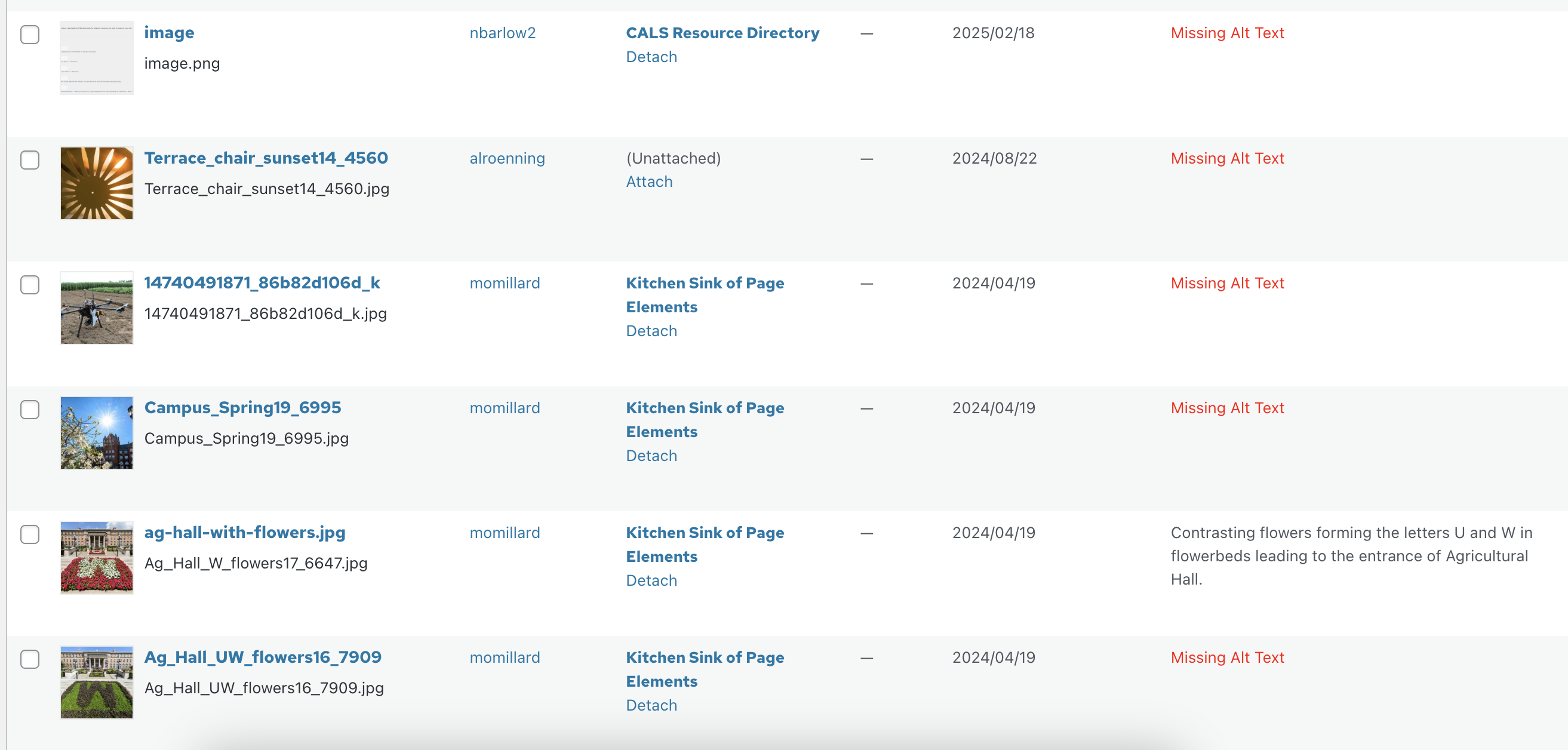
The CALSv4 WordPress theme has a built-in feature for you to easily identify missing alt text from your photos. To find this feature:
- Go to your WordPress dashboard and choose Media to open the media library.
- In the top left, you’ll see two icons: one for a list view and one for a grid view. By default, your library will be open in the grid view with all of the images/media prominently displayed. You’ll want to switch to list view for this feature.
- You’ll see a table layout with a preview of the file and other information about it. In the far right column, you’ll be able to see the alt text. If a photo is missing alt text, you’ll see “Missing Alt Text.”
- To add or change the alt text, hover over the table row and select edit, then fill in the alternative text field.
Remember that not all images need alt text. Refer to our alt text guidelines when making your judgement.
Media Sizes
In WordPress, when you upload an image, there’s secretly actually up to 4 versions of that image with different sizes: thumbnail (150px*), medium (300px*), large (1024px*), and full size (the original image you uploaded). You may notice in some image blocks, you have the option to choose which image resolution to use. WordPress also automatically serves different these different image sizes depending on the device width. For example, on a small phone, it’s much faster to load a smaller resolution image, and that image will look the same anyway since the device is smaller (doesn’t need as many pixels as a laptop or desktop screen).
*The pixel sizes are defaults. Your individual site may have a slightly different configuration.
What size image should I upload?
When uploading an image, it’s best to upload an image that’s at least slightly wider and taller than the large image size so it doesn’t look pixelated on the screen.
However, the most important metric is the file size. All images should ideally be kept under 1 MB. If your images are larger than that, use a tool like Squoosh to compress your images without losing too much quality. File size is important because it directly affects the amount of time it takes for your image to load on a user’s device.