
Do I need to upgrade my site?
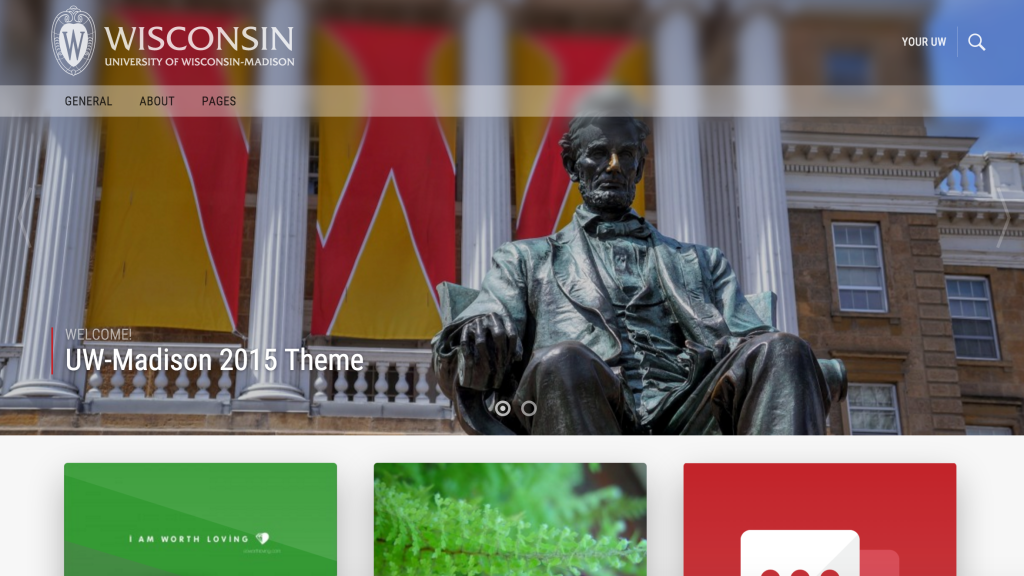
If you’re not using the newest CALS v4 theme, the short answer is probably yes. If your site uses our old 2015 (v3) theme, or is using a non-UW vendor theme, you will need to upgrade your site to your newest CALS v4 theme that uses the Gutenberg. CALS Web Services is working through upgrading sites, and will reach out when it is time for you to upgrade.
Preparing for Theme Upgrade
Site clean up is an important task that every site editor/owner should do every year. Deleting old media (images/pdfs), pages and posts that are not being used or that are duplicates helps keep your site manageable, and can also speed up your site, particularly if it has lots of old content laying around. This old and unused content can bog down the database and make your website slower since there is more stuff for it to sift through every time your website loads.
Clean up is also an important first step in the upgrade process. It will save you time to not have to convert content that you are not using, and again will also provide you with a leaner, faster website after upgrading.
Clean up your pages and posts
This is a great time to delete old pages and posts that are no longer needed.
- Delete pages and posts that you no longer need or that are in “draft” state.
- It is also a great time to delete old posts that are no longer relevant, since post content is often ephemeral, such as announcements, events, etc. Old posts can often be deleted if they’re no longer relevant, timely, or accurate.
Clean up your user list
Take a look through your user list by visiting Users > All Users from the admin panel of your site. Make sure nobody has access to your site who should not, such as previous students who have since graduated or old staff members.
Clean up media library
Visit your media library by visiting Media from the admin panel of your site. If there are photos you know are not on a page, you can delete them. Unfortunately, the Media interface in WordPress leaves a lot to be desired. It will not be able to accurately indicate whether an image is actually used on a page. You should also take a look at the list view (by clicking the icon in the top left) to see which images are missing alt text. If an image is missing alt text within the media library, it doesn’t necessarily mean it is missing alt text on the page, as these are controlled independently. However, setting alt text from the media library (and in the uploader whenever you add a new image) is a great habit since the alt text will then be automatically used when the image is added to any page. Not sure how or when to use alt text? Here’s some guidelines to follow.
Learn how to use the block editor
Make sure you’re prepared to use the block editor interface by reviewing our resources and training videos. We’re also available for one-on-one training sessions.
Learn how to make your content accessible
Make sure you’re familiar with UW-Madison digital accessibility initiative and requirements so you can check pages for accessibility as you convert content over to the block editor. See our CALS documentation for a tutorial on how to make your WordPress page content accessible.
Theme Upgrade Options
To upgrade your site, we’ll either flip the theme on the live site or create a staging site for you with the new theme. If you’re not sure which is better for your site, we’ll be happy to help guide your decision.
Quick Flip
For smaller sites or sites with less traffic, we can switch to CALSv4 on the live site. All of your content will remain, but it may shift or look weird. We’ll help fix high-traffic pages.
- ✅ Quickest, easiest option
- ✅ Good for small sites and sites already using the Gutenberg editor
- ✅ We’ll help rebuild key pages
- ✅ You won’t have to keep track of changes for two versions of your site
- ⛔️ Possibility of pages looking strange for a brief period
- ⛔️ Not ideal for large, high-traffic sites
Staging Site
For larger sites, we can clone your site into a staging site. You’ll be able to go page-by-page and rebuild in the new theme. When all of the pages have been converted, it’ll replace your live site.
- ✅ No downtime
- ✅ Good for large sites with lots of advanced pages
- ⛔️ More effort and time
- ⛔️ You’ll have to keep track of content changes between the live site and staging site